Notes on Setting up a Rails Server in 2015 (Ubuntu 14.04, Nginx, Passenger, Ruby 2.1, PostgreSQL)

I spent a decent amount of time last month playing around with scripts for setting up a Rails server from scratch. Turns out that the whole process is simpler than what I had to go through 7 years ago when I was learning how to install LAMP from scratch.

Here’s the basic set of commands to install Nginx + Passenger + Ruby 2.1 + PostgreSQL on an Ubuntu 14.04 Server:

$ sudo su

# apt-add-repository ppa:brightbox/ruby-ng
# apt-key adv --keyserver keyserver.ubuntu.com --recv-keys 561F9B9CAC40B2F7
# vim /etc/apt/sources.list.d/passenger.list
 
# apt-get update
 
# apt-get install git-core build-essential ruby2.1 ruby2.1-dev \
    libruby2.1 nodejs nginx-extras passenger postgresql libpq-dev
 
# vim /etc/nginx/nginx.conf
 
# adduser deploy --shell /bin/bash --disabled-password
# sudo -u postgres createuser --superuser deploy
# sudo -u postgres createdb deploy
 
# gem2.1 install bundler --no-ri --no-rdoc

($ prompt means user, # means root)

There are a bunch of other stuff that you need to setup like ssh/sshd/firewall and mail/postfix settings but these commands pretty much covers all the software you need to install before you setup a production app. For example, here’s the rest of the commands for setting up Redmine:

# su -l deploy

$ wget http://www.redmine.org/releases/redmine-2.6.0.tar.gz
$ tar -xf redmine-2.6.0.tar.gz
$ cd redmine-2.6.0/
$ vim config/database.yml
$ createdb redmine
$ bundle install --binstubs bin --path bundle --without development test rmagick
$ bin/rake generate_secret_token
$ RAILS_ENV=production bin/rake db:migrate
$ RAILS_ENV=production bin/rake redmine:load_default_data
$ exit

# vim /etc/nginx/sites-available/default
# service nginx restart

Other tutorials already cover most of the commands above. Instead of repeating them, I’ll just be going through some quick notes about the process, explaining my approach and mentioning some gotchas.

Why install Passenger and Ruby from apt repositories?

It’s much faster than installing from source.

It’s also easier to update via apt-get upgrade.

Why Passenger instead of Nginx + Unicorn/Puma/etc?

Aside from the reasons above, it requires less configuration and it’s good enough for most cases.

The only way I’d consider other setups is if you need rolling restarts or more control over your memory usage.

Why use BrightBox’s repo instead of RVM/rbenv or install from source?

Most production servers only need one version of Ruby installed so I don’t see a reason for using version managers. They might make sense in staging servers for testing multiple versions, but not in prod.

Gem installation isn’t a problem since you’re going to use Bundler anyway i.e. after installing and having bundle available system-wide, you can have it install gems locally via --path like in the example above.

So that leaves us with manually installing from source. However, as mentioned above, installing via apt is just more convenient. The BrightBox packages may sometimes not be up-to-date (DevCon is running in preview 2.2 right now), but they tend to update a few weeks after a major release.

Bonus: Why are we using an older version of NodeJS?

We’re not using a more up-to-date apt repository for NodeJS because we’re only using it for asset precompilation.

There’s a gotcha related to this that we’ll talk about later.

Security: why allow root login via ssh?

Just like the “use rvm in prod” advice, it feels like a lot of people go by “PermitRootLogin no” when my script instead uses PermitRootLogin without-password.

For newbies, this makes sense: preventing people from logging in as root is a great way to prevent hacking attempts. In reality, we’re not totally preventing remote “root” log-ins – we’re prevent logging in as root because we want our SysAds to log in as a sudo user so all of their actions can be logged.

For simpler systems, it may be better to just allow remote root login as long as public keys are used, hence “PermitRootLogin without-password“.

Why is the deploy user not a sudo user?

It’s not really for security reasons. Yes, having a basic pasword-less user does make our apps secure, considering that Passenger automatically switches the user to the owner of the app, but my main reason for not making deploy a sudo user is because it doesn’t need it.

It doesn’t need sudo to install gems, bundle install --path installs to a local folder.
It doesn’t need sudo to restart the app server, touch tmp/restart.txt does that.

It’s just a simple constraint I added to make sure I’m isolating the deploy user to deployment tasks.

And besides, some of you might notice how insecure deploy is when it comes to…

Why is the deploy user a superuser for PostgreSQL? Why use Ident/Peer auth instead of a password?

Same reason as root login: personal server, no need for extra security than needed. If the attacker somehow logs in as deploy, the DB is screwed either way.

In other words superuser + peer auth is about as secure as the usual password approach while also easier to setup (by just a few commands LOL).

Config files

There’s nothing special about most of the config files edited via vim in the scripts above. The apt source and default nginx site config file would just contain the recommended settings. The database config can just contain three lines: the environment (production:), the adapter (adapter: postgresql), and the database name.

As for the main nginx config file, apart from being edited as recommended by the docs, there’s also one big gotcha that will prevent your app from running in Passenger:

execjs gotcha

If your app is using sprockets and you’re using an external JS runtime like NodeJS, your app may not run because Passenger can’t find a valid JS runtime via execjs.

Reason? Execjs looks for NodeJS with the PATH, and environment variables like PATH are not automatically used by Passenger.

While there are a couple of ways to solve this, my current preferred method is to use env PATH;.

There you have it, my quick guide to Rails server setup.

I could write a part 2 about deployment, but I’m afraid the tl;dr to that would be “just use Mina“.
Learn how to setup a web server pt3: Installing MySQL and PHP apps (e.g. WordPress)

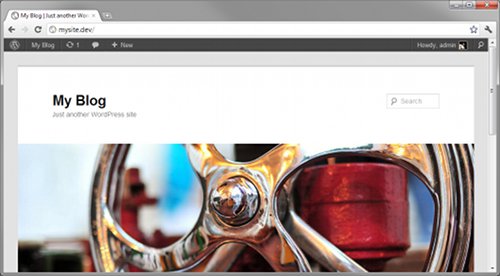
WordPress Installed

Here’s a quick update to this mini-tutorial. Previous parts can be found here and here.

Installing MySQL

Installing MySQL is so simple that I don’t need to hide it behind the cut. The one in the Ubuntu repositories work just fine:

$ sudo apt-get install mysql-server-5.1

Note that you will be asked to enter a root password somewhere in the installation.

To wrap up the installation run

$ sudo mysql_install_db

to initialize the installed server and

$ sudo mysql_secure_installation

to secure it.

In mysql_secure_installation, you’ll be asked for your root password and then you’ll asked if you want to change it. Just enter “n” since there’s no reason to change it this early. Then you’ll be asked if you want to do some things to secure the database which is, of course, what we want to do so just hit Enter for each question to choose the default answer (“Y”).

Continue reading “Learn how to setup a web server pt3: Installing MySQL and PHP apps (e.g. WordPress)”

Learn how to setup a web server pt2: Installing Nginx and PHP

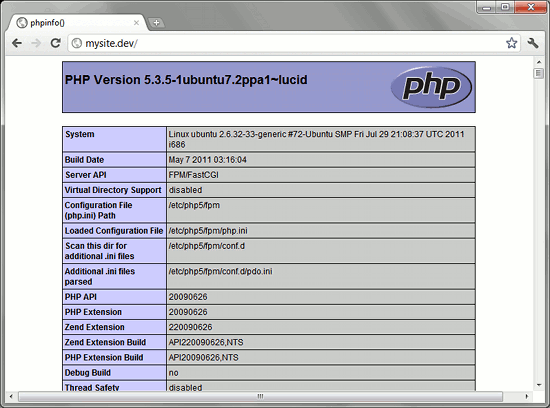
phpinfo()

Here’s the next part of my basic web server administration tutorial.

At the first part, we set up the virtual machine. Now we’ll be setting up the web server itself.

Set Static IP Address and fake Domain Name

Before we could proceed with installing our web server, let’s do a couple of things to make our server behave more like a “normal” server.

First is to set our server’s IP address to a static IP address. There are a bunch of ways to do this (e.g. change the router settings), but we’ll just go with changing our server’s settings

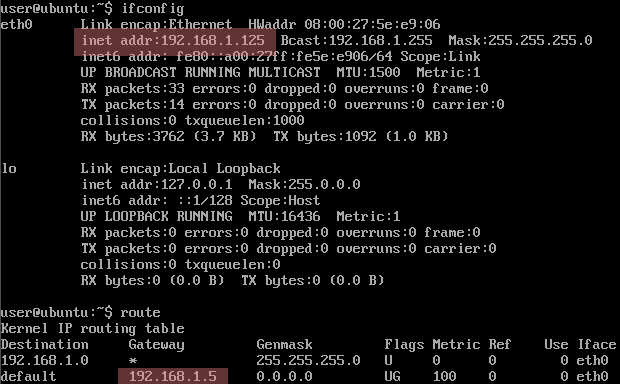
Running ifconfig and route will give us the current IP address and gateway.

ifconfig and route

In this case, the new IP address is 192.168.1.125 and the gateway is 192.168.1.5. We can now apply these settings to /etc/network/interfaces. Open the said file via:

$ sudo vim /etc/network/interfaces

(For this tutorial, I’ll be using vim as the default text editor. If you find vim too daunting, you can replace all instances of vim with nano)

It will look something like:

# This file describes the network interfaces available on your system
# and how to activate them. For more information, see interfaces(5).

# The loopback network interface
auto lo
iface lo inet loopback

# The primary network interface
auto eth0
iface eth0 inet dhcp

Now replace the last line with the following:

iface eth0 inet static
address [address here]
netmask 255.255.255.0
gateway [gateway here]

for example:

iface eth0 inet static
address 192.168.1.125
netmask 255.255.255.0
gateway 192.168.1.5

To make sure you got the static IP settings correctly, you can restart the server via

$ sudo shutdown -r now

or you could just simply restart the network interface:

$ sudo /etc/init.d/networking restart

Here we see the /etc/init.d folder where the init scripts (like networking) are placed. Aside from being executed automatically upon boot to start services, they can also be used to stop or restart the said services just like what we just did with networking. We will see more of /etc/init.d/ later in this tutorial.

Now that we’ve set the IP address as static, it’s time to set a fake domain name.

Normally, when you’ve got a server with a static IP address, you’d have to go and buy a domain name from a registrar like Namecheap and you’d go through the steps in linking that name with the IP address and waiting for the DNS propagation.

For this tutorial, we’re going to skip all that by faking it with the hosts file.

First let’s update the server’s /etc/hosts file to add our fake domain name “mysite.dev”:

sudo vim /etc/hosts

Add the line at the end:

192.168.1.125   mysite.dev

You can verify the new setting by using the ping command.

user@ubuntu:~$ ping -c 4 mysite.dev
PING mysite.dev (192.168.1.125) 56(84) bytes of data.
64 bytes from mysite.dev (192.168.1.125): icmp_seq=1 ttl=64 time=0.172 ms
64 bytes from mysite.dev (192.168.1.125): icmp_seq=2 ttl=64 time=2.38 ms
64 bytes from mysite.dev (192.168.1.125): icmp_seq=3 ttl=64 time=3.34 ms
64 bytes from mysite.dev (192.168.1.125): icmp_seq=4 ttl=64 time=1.59 ms

--- mysite.dev ping statistics ---
4 packets transmitted, 4 received, 0% packet loss, time 3016ms
rtt min/avg/max/mdev = 0.172/1.874/3.342/1.161 ms
user@ubuntu:~$

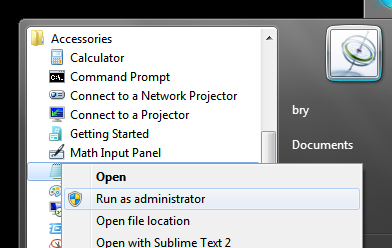
Now let’s apply the fake domain name mapping to the host Windows computer. Like in Linux, the hosts file in Windows requires admin privileges so we first need to run the text editor as Administrator in order to allow us to modify it.

Run as administrator

Right-click Notepad and select “Run as administrator”. Once open, you can now add the “192.168.1.125 mysite.dev” to the end of the C:\Windows\System32\drivers\etc\hosts file.

Now you could change the PuTTy settings to use “mysite.dev” instead of the actual IP address.

The actual installation of the web server below the cut.

Continue reading “Learn how to setup a web server pt2: Installing Nginx and PHP”

Learn how to setup a web server pt1: Setting up a practice server

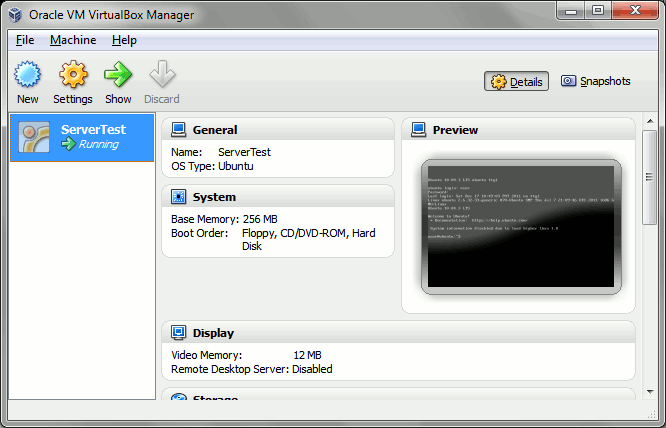
VirtualBox

So you want to be a bit productive this holiday/winter/end-of-year break and decide to learn how to setup your own website.

But for some odd reason you don’t want to settle with a free website service like WordPress or even a cPanel managed shared hosting site. Instead, you want to know how to setup your own web server, something like a Linode VPS or an Amazon EC2 instance.

Luckily for you, I’m having a bit of a writer’s block and I have time to write about how to learn setting up a Linux server without having to pull out your credit card.

What this post is all about

In this post, we’ll just discuss how to set up a virtual server on your computer.

Yes, that’s right. We’re not installing a server OS on a spare machine, nor are we dual-booting: we’ll be setting up a server in your desktop, running the former inside the latter. This is virtualization, dawg.

We’ll be creating a server with somewhat similar specs to what you’d get if you sign up for $8 a month at prgmr.com. This simulated environment will be enough for a newbie to learn the ropes in server management.

What you need

Any relatively modern desktop or laptop computer will do. For this series of posts, I’ll be forgoing the use of my quad-core gaming rig and instead use my laptop (dual-core @ 2.1GHz with 3GB RAM). For the sake of the majority of the readers, I’ll be using Windows 7 as the OS though the steps will almost be the same when using Windows XP and Vista, and will still be similar even when using Linux or OSX.

You also need to be connected to a network, preferably one that gives out local IP addresses via a DHCP server. In other words, a home/office router. Fast internet also helps as you need to download >700MB worth of installer data.

As for the software, you will need to download VirtualBox and a CD image (.iso) for Ubuntu Server 10.04.3 Long Term Support 32-bit. The VirtualBox download and installation is pretty straightforward, but for the Ubuntu Server 10.04.3, you may want to choose downloading via BitTorrent for faster download speed.

Unlike Linux and OSX users who already have it built in on their terminals, Windows users will also have to download an SSH client like PuTTy, the one that you’ll see in this tutorial.

Continue reading “Learn how to setup a web server pt1: Setting up a practice server”

Take periodic screenshots in Ubuntu with scrot and cron

I had to log my hourly effort in my last gig (stupid policy IMO; what am I, a factory worker?) but since I’m not working on Windows, I couldn’t use ManicTime to do the tracking for me.

Taking a cue from oDesk, I decided to make a simple script that takes screenshots of my desktop every few minutes so that I could just review them at the end of the day. For this I used scrot for taking the screenshots and cron for the scheduling.

First install scrot:

$ sudo apt-get install scrot

Then write a script, say /path/to/home/scrot.sh:

#!/bin/sh
LOCATION="$(date +/path/to/home/Pictures/shots/%Y/%m/%d)"
mkdir -p $LOCATION
cd $LOCATION
DISPLAY=:0 scrot '%Y-%m-%d-%H%M.jpg' -q 20

This script will take a low quality screenshot of the desktop and put it in the Pictures/shots folder separated by date.

Set the permissions with chmod:

$ chmod u+x /path/to/home/scrot.sh

You can now test this by running:

$ /path/to/home/scrot.sh

Now time to add the script as a cron job. There are a lot of cron tutorials out there, but to summarize what you need to do, here are the basic steps:

Run crontab -e to edit the cron table file for your current user.

Add a line that will execute scrot.sh whenever you want it to run. For example, here’s the entry for running the script every three minutes on Monday to Friday:

*/3 * * * 1-5 /path/to/home/scrot.sh