Use Global .gitignore

Just a quick tip for those using Git and constantly keep on adding personalized settings to their project .gitignore: not everyone uses vim and have to worry about .swp files and not everyone uses a Mac and has Mac turds everywhere.

What every Git user should know is that there’s a way to set a global .gitignore file. According to the man page:

Each line in a gitignore file specifies a pattern. When deciding whether to ignore a path, git normally checks gitignore patterns from multiple sources, with the following order of precedence, from highest to lowest (within one level of precedence, the last matching pattern decides the outcome):

  • Patterns read from the command line for those commands that support them.

  • Patterns read from a .gitignore file in the same directory as the path, or in any parent directory, with patterns in the higher level files (up to the toplevel of the work tree) being overridden by those in lower level files down to the directory containing the file. These patterns match relative to the location of the .gitignore file. A project normally includes such .gitignore files in its repository, containing patterns for files generated as part of the project build.

  • Patterns read from $GIT_DIR/info/exclude.

  • Patterns read from the file specified by the configuration variable core.excludesfile.

GitHub’s help pages show how simple it is to set the global core.excludesfile setting:

Global .gitignore

A global .gitignore file can also be used by adding one to your global git config. For example, you might create the file ~/.gitignore_global and add some rules to it. To add this to your config, run git config --global core.excludesfile ~/.gitignore_global

To get you started, there’s an entire folder in GitHub’s .gitignore repository dedicated to global .gitignore entries where you can copy from.
Make gitk look better by updating tk

I thought I’ve already done this to all of my machines but it seems that I haven’t done it on this laptop I’m using right now.

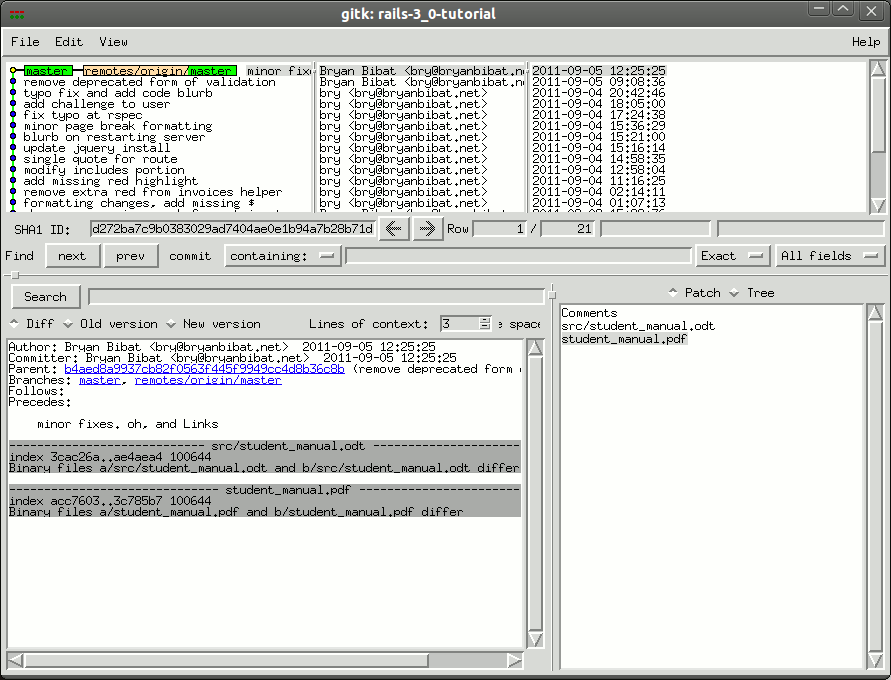
Anyway, I use gitk for my graphical git browsing because I’m too lazy to download other graphical packages. Unfortunately, gitk looks like this:

pre-tk8.5
(click pic for larger version)

The solution to this is to install tk8.5 and tell gitk to use it instead of 8.4. From SU:

To fix this the Debian (Ubuntu) way:

$ sudo apt-get install tk8.5
$ sudo update-alternatives --config wish

And then pick the wish8.5 alternative.

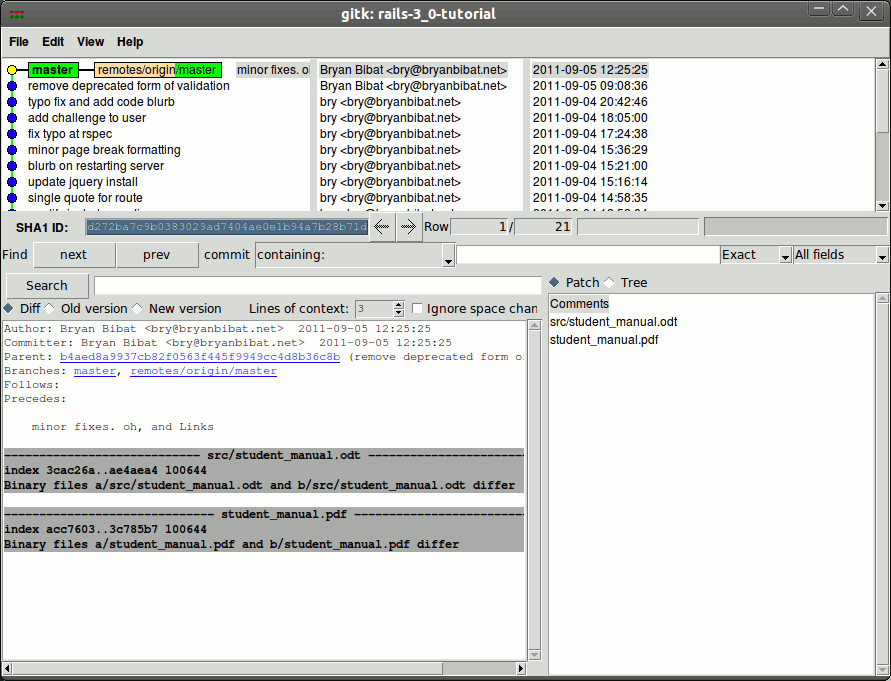
Here’s the result:

post-tk8.5

How to avoid breaking builds

git The guy I’m mentoring right now in one of my freelancing gigs is fairly new to software development so I decided to give him a couple of guidelines (conveniently posted on the project’s wiki) on how to properly use git.

Hopefully this should spare me the horrible flashbacks to the days when everyone I was working with was consistently breaking builds everyday.

Best Practices

  • Commit often. The more you commit, the easier it is to do stuff like rolling back changes or pinpointing where a change was committed.
  • Put a meaningful comment every commit. You’ll be thankful you did that 3-6 months down the line when you’re trying to verify if a certain piece of code is a bug or a feature.
  • Push with care. Follow the procedure below to avoid breaking the build i.e. pushing a version of the code which doesn’t work.

Proper Version Control Procedure

Before you push your code to the repository, please follow the following procedure:

  • If you still haven’t done it yet, commit your changes to your local repository (git add and/or git commit -a -m).
  1. Pull the changes from the remote repository (git pull).
  2. In case of conflict, manually edit the conflicting files.
    • You may have to collaborate with the other dev for this.
    • After fixing the conflict, commit the merged changes and go back to step 1 (git pull).
  3. Run the DB migrations.
  4. Run the RSpec tests.
    • If the specs fail, either fix the code or fix the specs.
    • After fixing the failing specs, commit the fixes and go back to step 1.
  5. Run the Cucumber tests.
    • If the specs fail, either fix the code or fix the features.
    • After fixing the failing features, commit the fixes and go back to step 1.
  6. Do a simple developer test. Open the server, log in, and open a couple of pages.
    • If the system doesn’t work, find the problem and fix it.
    • After making the system run smoothly again, commit the fixes and go back to step 1.
  7. You can now push your changes to the remote repository using git push.

You might notice that we’re using RSpec and Cucumber in our project. I’ll talk more about them in a later post.

Distributed Revision Control

Distributed Version Control Systems (DVCS) have been gaining popularity in the recent years. Here’s Linux creator Linus Torvalds talking about Git and why developers should consider moving to DVCS from traditional centralized repositories.

Personal thoughts below the cut.

Continue reading “Distributed Revision Control”

Revision Control

Anyone who codes programs without revision control is stupid. Seriously.

The trade-offs are so high that there’s almost no reason not to use a version control systems (VCS) when programming.

“So what is revision control?”, you might ask.

At its very core, revision control deals with tracking down changes to your work. That definition, however, is a bit misleading. For software development, it’s better to think of revision control as similar to the computer gaming concept of multiple saves.

I used up all of the save slots in Persona 4

As gamers will know, one save slot is not enough for larger games like epic RPGs or RTS games. It is not uncommon to encounter a scenario where a player realizes that he has made a terrible mistake 3-4 saves ago. If the game has only one save slot, that player is pretty much screwed as the save has already been overwritten. On the other hand, this won’t be a problem if he has saved on different save slots.

A similar problem pops up often when developing programs. A developer might realize that he made a terrible mistake in the code he wrote some time ago. Without a VCS, the developer only has one “save”: the one currently saved on his computer. He will have to search his files manually in order to pinpoint the location of the problematic code and fix or revert it.

With a VCS, however, the developer is given the ability “save” the current state of his code. As long as he commits (“commit” is “save” in revision terms) often, the above scenario is not going to be a big problem. Instead of manually searching each file for the change, he can look at the revision history which will tell him which files were changed. He can then use the various tools in the VCS to inspect and fix the problem. What would have taken the developer minutes or even hours to fix might only require a few seconds if there was a VCS in place.

Continue reading “Revision Control”