A few weeks ago, I took part in the performance tuning of WebGeek.ph. If you’ve been a constant visitor to that site last month (e.g. you’ve been checking for updates to the upcoming DevCup), you would’ve noticed the constant downtime due to server errors.
And if you’ve just visited that link above just now, you’ll notice that the site quickly loads. It may even load faster than most local websites.
So what did we do to solve the downtime problem? The answer can be seen in the following diagram:
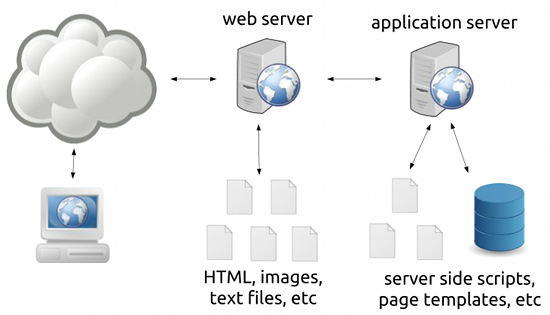
It shows an oversimplified view of how web servers work:
- Requests first go to a web server that serves files (images, text files, non-changing HTML files).
This is for unchanging or static content.
- Requests can also be forwarded to an “application server” (which can be anything from a CGI, FastCGI, an interpreter like mod_php, or a servlet container) which processes server-side scripts that may or may not access databses.
This is for changing (e.g. Facebook.com would look different for different people) or dynamic content.
Most blogging software like WordPress work using the latter; the application server will process and generate a new response every time a request comes in.
Now this isn’t a problem when you’ve got only a few readers on your site – your server can handle this with a lot of processing power to spare. The problem lies when you’re working with a site that can have hundreds of requests a second, say you’re a heavily linked site like WebGeek.ph. As seen in the downtime of the said site in the past months, heavy load on your application server can bring your server down.
You can solve this problem by throwing a more powerful server at the problem, but as we all know, servers aren’t cheap.
The first (but not the only) answer to this problem is to realize that blogs and CMSs are not web applications but are web content sites, that is, most of the pages are unchanging. If we could find a way to turn our dynamic pages into static pages and push the processing from the application server to the web server, we can dramatically reduce the load to our server.
And here’s where page caching comes in.
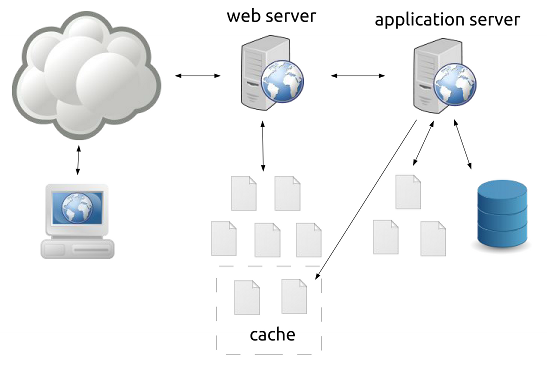
Some applications allow page caching wherein generated pages are placed in a cache where they are treated as static files by the web server. Of course, treating these pages as permanently static files is a bad idea (e.g. a front page of a blog will change often) so a caching system can have many ways to modify the cache like setting an expiry date for pages or deleting the pages once something is modified in the content of the site.
Long story short, we installed W3 Total Cache on the site and we got this performance out of it:
bry-temp@webgeek:~# ab -n 1000 -c 20 http://webgeek.ph/devcup/
This is ApacheBench, Version 2.3 <$Revision: 655654 $>
Copyright 1996 Adam Twiss, Zeus Technology Ltd, http://www.zeustech.net/
Licensed to The Apache Software Foundation, http://www.apache.org/

Benchmarking webgeek.ph (be patient)
Completed 100 requests
Completed 200 requests
Completed 300 requests
Completed 400 requests
Completed 500 requests
Completed 600 requests
Completed 700 requests
Completed 800 requests
Completed 900 requests
Completed 1000 requests
Finished 1000 requests


Server Software: Apache/2.2.22
Server Hostname: webgeek.ph
Server Port: 80

Document Path: /devcup/
Document Length: 41120 bytes

Concurrency Level: 20
Time taken for tests: 0.578 seconds
Complete requests: 1000
Failed requests: 0
Write errors: 0
Total transferred: 41537000 bytes
HTML transferred: 41120000 bytes
Requests per second: 1729.69 [#/sec] (mean)
Time per request: 11.563 [ms] (mean)
Time per request: 0.578 [ms] (mean, across all concurrent requests)
Transfer rate: 70162.27 [Kbytes/sec] received

Connection Times (ms)
              min mean[+/-sd] median max
Connect: 0 0 0.3 0 2
Processing: 2 11 2.0 11 22
Waiting: 2 11 2.0 11 21
Total: 3 11 1.9 11 22

Percentage of the requests served within a certain time (ms)
  50% 11
  66% 12
  75% 12
  80% 13
  90% 13
  95% 15
  98% 17
  99% 19
 100% 22 (longest request)
bry-temp@webgeek:~#
(For those not familiar with ApacheBench, look at the “Requests per second” line.)
Being the chronic procrastinator that I am, I still haven’t upgraded the caching plugin for this blog. It’s still using the older WP Super Cache, which, combined with the smaller pages and using nginx over Apache, gives me these numbers:
bry@linode:~$ ab -n 1000 -c 20 http://blog.bryanbibat.net/
This is ApacheBench, Version 2.3 <$Revision: 655654 $>
Copyright 1996 Adam Twiss, Zeus Technology Ltd, http://www.zeustech.net/
Licensed to The Apache Software Foundation, http://www.apache.org/

Benchmarking blog.bryanbibat.net (be patient)
Completed 100 requests
Completed 200 requests
Completed 300 requests
Completed 400 requests
Completed 500 requests
Completed 600 requests
Completed 700 requests
Completed 800 requests
Completed 900 requests
Completed 1000 requests
Finished 1000 requests


Server Software: nginx/1.0.14
Server Hostname: blog.bryanbibat.net
Server Port: 80

Document Path: /
Document Length: 48651 bytes

Concurrency Level: 20
Time taken for tests: 0.204 seconds
Complete requests: 1000
Failed requests: 0
Write errors: 0
Total transferred: 48864000 bytes
HTML transferred: 48651000 bytes
Requests per second: 4890.93 [#/sec] (mean)
Time per request: 4.089 [ms] (mean)
Time per request: 0.204 [ms] (mean, across all concurrent requests)
Transfer rate: 233389.17 [Kbytes/sec] received

Connection Times (ms)
              min mean[+/-sd] median max
Connect: 0 0 0.3 0 2
Processing: 1 4 1.0 3 6
Waiting: 0 3 1.2 3 5
Total: 2 4 1.0 4 6
WARNING: The median and mean for the processing time are not within a normal deviation
        These results are probably not that reliable.

Percentage of the requests served within a certain time (ms)
  50% 4
  66% 4
  75% 5
  80% 5
  90% 6
  95% 6
  98% 6
  99% 6
 100% 6 (longest request)
bry@linode:~$
As I’ve said above, every application and platform has their own way of caching pages. For instance, Pangkaraniwang Developer uses Rails but I was still able to implement page caching for the lessons with ease.
bry@linode:~$ ab -n 1000 -c 20 http://pd.bryanbibat.net/
This is ApacheBench, Version 2.3 <$Revision: 655654 $>
Copyright 1996 Adam Twiss, Zeus Technology Ltd, http://www.zeustech.net/
Licensed to The Apache Software Foundation, http://www.apache.org/

Benchmarking pd.bryanbibat.net (be patient)
Completed 100 requests
Completed 200 requests
Completed 300 requests
Completed 400 requests
Completed 500 requests
Completed 600 requests
Completed 700 requests
Completed 800 requests
Completed 900 requests
Completed 1000 requests
Finished 1000 requests


Server Software: nginx/1.0.14
Server Hostname: pd.bryanbibat.net
Server Port: 80

Document Path: /
Document Length: 15114 bytes

Concurrency Level: 20
Time taken for tests: 0.186 seconds
Complete requests: 1000
Failed requests: 0
Write errors: 0
Total transferred: 15327000 bytes
HTML transferred: 15114000 bytes
Requests per second: 5367.95 [#/sec] (mean)
Time per request: 3.726 [ms] (mean)
Time per request: 0.186 [ms] (mean, across all concurrent requests)
Transfer rate: 80346.20 [Kbytes/sec] received

Connection Times (ms)
              min mean[+/-sd] median max
Connect: 0 0 0.2 0 1
Processing: 1 4 0.7 3 5
Waiting: 0 3 0.7 3 5
Total: 2 4 0.6 4 5
WARNING: The median and mean for the processing time are not within a normal dev iation
        These results are probably not that reliable.

Percentage of the requests served within a certain time (ms)
  50% 4
  66% 4
  75% 4
  80% 4
  90% 5
  95% 5
  98% 5
  99% 5
 100% 5 (longest request)
bry@linode:~$
Page caching can go beyond web servers and into the realm of web accelerators (e.g. Varnish) and distributed cloud-based solutions (e.g. CloudFlare).
—
To wrap things up, whenever I hear someone having performance problems in their primarily content-based website and hear some know-it-all say something like “You should’ve bought a bigger server!” or worse “You shouldn’t have used [language X] and [database W]! Everyone knows they don’t scale!“, I can’t help but facepalm.
Page caching won’t solve all your performance problems, but it should be among the first things you should look at (along with SQL profiling and data caching) whenever you find your websites frequently buckle under the loads they’re getting. Given that most page caching solutions don’t cost anything and can be done in less than an hour, there’s really no reason to try it out before doing anything drastic.