Building Wooga’s Pocket Island in Windows

Last week, social/mobile game developer Wooga released the code of one of their HTML5 games as open source.

Unfortunately for Windows users, the whole application was built in a Mac. Because of this, a lot of Unix-y stuff they put in won’t work even if you install minGW e.g. #! executables and egrep/printf.

Normally, I’d just suggest a Windows user to just install Linux on a virtual machine but that would be too easy.

Taking these problems instead as a challenge, I tried to get around them by playing around with the code. After tweaking tasks/build.rake for a bit, somehow things just worked. Yay!

So for those interested, here’s how to build the game on Windows 7 (haven’t tried it on XP but it should work):

  • Install Ruby + DevKit + msysgit. Or just get RailsInstaller to install all of that for you.
  • Install Node.js
  • Add msysgit’s minGW and Node.js to your PATH. e.g ;C:\RailsInstaller\Git\bin;C:\Program Files\nodejs\.
  • Clone my fork and use the win-kludge branch:

    git clone git://github.com/bryanbibat/Pocket-Island.git
    cd Pocket-Island
    git checkout win-kludge
    
    
  • Download and extract the images to the images folder.
  • Follow the installation normally.

    npm install -g less jslint
    gem install spritopia
    rake
    
    
  • (optional) Start the simple static server then open http://localhost:4567/ipad.html.

    gem install sinatra
    ruby -rubygems server.rb
    
    
  • (optional) Install Java and run the rake all.

    rake all
    cd build
    copy ..\server.rb .
    ruby -rubygems server.rb


Pangkaraniwang Developer – matuto ng Computer Science at Programming

“Turuan ang sinumang Pilipino na gustong matuto ng Programming o Computer Science.”

If there’s a tagline for my current project, Pangkaraniwang Developer, that would be it.

No need for a lengthy blog post, just head over to the About page and learn why I’m doing this.

Donations are always welcome. LOL

How to prepare for a Technical Interview

With April being the graduation month here in the Philippines, you’ll be seeing fresh graduates in various forums and discussion groups looking for advice on how to pass technical interviews. Here’s one posted over at the PHP Users Group forum earlier today:

Can you help me with this? I’m going to take a technical written exam for a job i’m applying. Here is the list of what are expected on the exam:
-Basic Programming
-OOP
-recursive programming and variables in programming
-? statement
-conditional statements
-loop statements
-flowcharting
-pseudocodes (strings,odd/even)
Can you guys give me tips and heads up on where to focus and what to expect on the exam? The exam will be next week and I want to be prepared for it. Thanks in advance.

PS: Hindi ko alam kung anong programming language ung eexam. (I don’t know what programming language will be used in the test)

Whenever I see these type of questions, the first thing I do is give a ಠ_ಠ to my monitor. The listed coverage above is so basic that every 2nd year college student should have no problem with it.

It’s like a carpenter asking what tool to focus on when applying for a carpenter position: screwdrivers, hammers, saws, or measuring tape? Yes, it’s that basic.

Unhelpful snarkiness aside, what advice would I give to these fresh grads?

Continue reading “How to prepare for a Technical Interview”

Learn how to setup a web server pt2: Installing Nginx and PHP

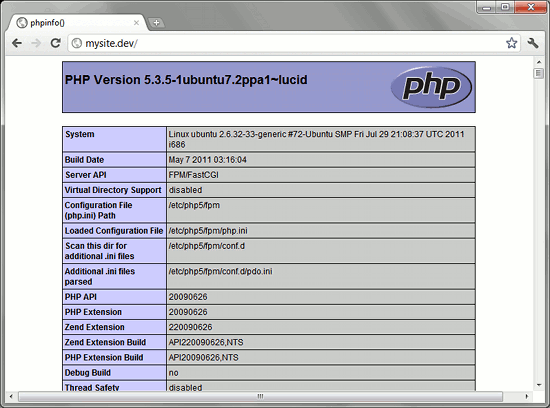
phpinfo()

Here’s the next part of my basic web server administration tutorial.

At the first part, we set up the virtual machine. Now we’ll be setting up the web server itself.

Set Static IP Address and fake Domain Name

Before we could proceed with installing our web server, let’s do a couple of things to make our server behave more like a “normal” server.

First is to set our server’s IP address to a static IP address. There are a bunch of ways to do this (e.g. change the router settings), but we’ll just go with changing our server’s settings

Running ifconfig and route will give us the current IP address and gateway.
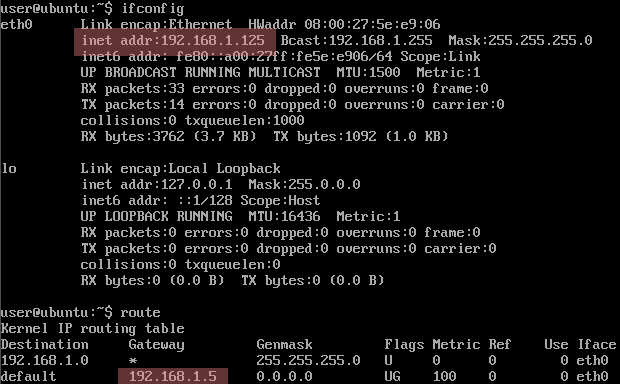
ifconfig and route

In this case, the new IP address is 192.168.1.125 and the gateway is 192.168.1.5. We can now apply these settings to /etc/network/interfaces. Open the said file via:

$ sudo vim /etc/network/interfaces

(For this tutorial, I’ll be using vim as the default text editor. If you find vim too daunting, you can replace all instances of vim with nano)

It will look something like:

# This file describes the network interfaces available on your system
# and how to activate them. For more information, see interfaces(5).

# The loopback network interface
auto lo
iface lo inet loopback

# The primary network interface
auto eth0
iface eth0 inet dhcp

Now replace the last line with the following:

iface eth0 inet static
address [address here]
netmask 255.255.255.0
gateway [gateway here]

for example:

iface eth0 inet static
address 192.168.1.125
netmask 255.255.255.0
gateway 192.168.1.5

To make sure you got the static IP settings correctly, you can restart the server via

$ sudo shutdown -r now

or you could just simply restart the network interface:

$ sudo /etc/init.d/networking restart

Here we see the /etc/init.d folder where the init scripts (like networking) are placed. Aside from being executed automatically upon boot to start services, they can also be used to stop or restart the said services just like what we just did with networking. We will see more of /etc/init.d/ later in this tutorial.

Now that we’ve set the IP address as static, it’s time to set a fake domain name.

Normally, when you’ve got a server with a static IP address, you’d have to go and buy a domain name from a registrar like Namecheap and you’d go through the steps in linking that name with the IP address and waiting for the DNS propagation.

For this tutorial, we’re going to skip all that by faking it with the hosts file.

First let’s update the server’s /etc/hosts file to add our fake domain name “mysite.dev”:

sudo vim /etc/hosts

Add the line at the end:

192.168.1.125   mysite.dev

You can verify the new setting by using the ping command.

user@ubuntu:~$ ping -c 4 mysite.dev
PING mysite.dev (192.168.1.125) 56(84) bytes of data.
64 bytes from mysite.dev (192.168.1.125): icmp_seq=1 ttl=64 time=0.172 ms
64 bytes from mysite.dev (192.168.1.125): icmp_seq=2 ttl=64 time=2.38 ms
64 bytes from mysite.dev (192.168.1.125): icmp_seq=3 ttl=64 time=3.34 ms
64 bytes from mysite.dev (192.168.1.125): icmp_seq=4 ttl=64 time=1.59 ms

--- mysite.dev ping statistics ---
4 packets transmitted, 4 received, 0% packet loss, time 3016ms
rtt min/avg/max/mdev = 0.172/1.874/3.342/1.161 ms
user@ubuntu:~$

Now let’s apply the fake domain name mapping to the host Windows computer. Like in Linux, the hosts file in Windows requires admin privileges so we first need to run the text editor as Administrator in order to allow us to modify it.
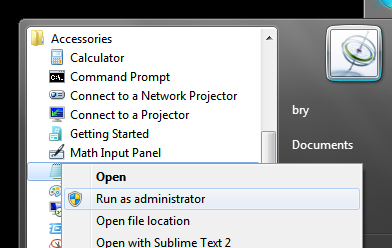
Run as administrator

Right-click Notepad and select “Run as administrator”. Once open, you can now add the “192.168.1.125 mysite.dev” to the end of the C:\Windows\System32\drivers\etc\hosts file.

Now you could change the PuTTy settings to use “mysite.dev” instead of the actual IP address.

The actual installation of the web server below the cut.

Continue reading “Learn how to setup a web server pt2: Installing Nginx and PHP”

Learn how to setup a web server pt1: Setting up a practice server

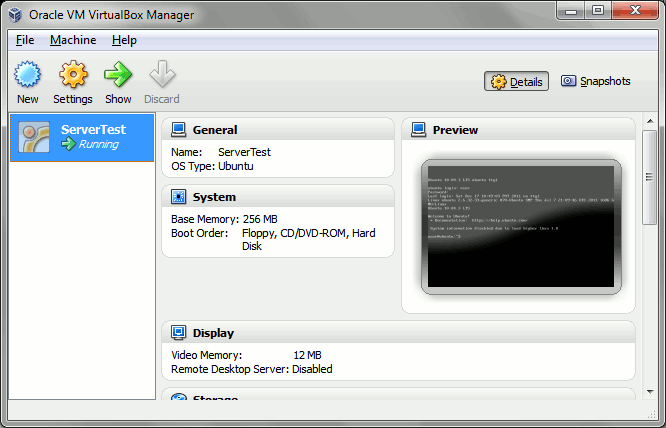
VirtualBox

So you want to be a bit productive this holiday/winter/end-of-year break and decide to learn how to setup your own website.

But for some odd reason you don’t want to settle with a free website service like WordPress or even a cPanel managed shared hosting site. Instead, you want to know how to setup your own web server, something like a Linode VPS or an Amazon EC2 instance.

Luckily for you, I’m having a bit of a writer’s block and I have time to write about how to learn setting up a Linux server without having to pull out your credit card.

What this post is all about

In this post, we’ll just discuss how to set up a virtual server on your computer.

Yes, that’s right. We’re not installing a server OS on a spare machine, nor are we dual-booting: we’ll be setting up a server in your desktop, running the former inside the latter. This is virtualization, dawg.

We’ll be creating a server with somewhat similar specs to what you’d get if you sign up for $8 a month at prgmr.com. This simulated environment will be enough for a newbie to learn the ropes in server management.

What you need

Any relatively modern desktop or laptop computer will do. For this series of posts, I’ll be forgoing the use of my quad-core gaming rig and instead use my laptop (dual-core @ 2.1GHz with 3GB RAM). For the sake of the majority of the readers, I’ll be using Windows 7 as the OS though the steps will almost be the same when using Windows XP and Vista, and will still be similar even when using Linux or OSX.

You also need to be connected to a network, preferably one that gives out local IP addresses via a DHCP server. In other words, a home/office router. Fast internet also helps as you need to download >700MB worth of installer data.

As for the software, you will need to download VirtualBox and a CD image (.iso) for Ubuntu Server 10.04.3 Long Term Support 32-bit. The VirtualBox download and installation is pretty straightforward, but for the Ubuntu Server 10.04.3, you may want to choose downloading via BitTorrent for faster download speed.

Unlike Linux and OSX users who already have it built in on their terminals, Windows users will also have to download an SSH client like PuTTy, the one that you’ll see in this tutorial.

Continue reading “Learn how to setup a web server pt1: Setting up a practice server”