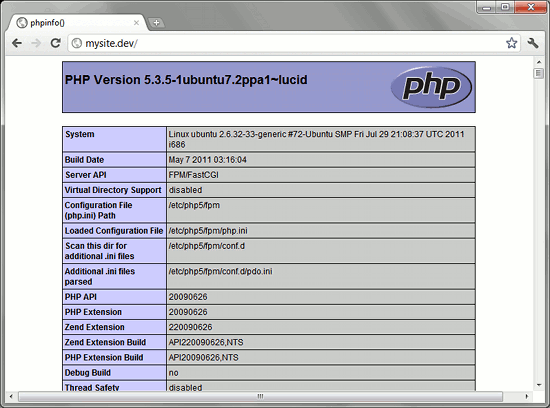
Learn how to setup a web server pt2: Installing Nginx and PHP

phpinfo()

Here’s the next part of my basic web server administration tutorial.

At the first part, we set up the virtual machine. Now we’ll be setting up the web server itself.

Set Static IP Address and fake Domain Name

Before we could proceed with installing our web server, let’s do a couple of things to make our server behave more like a “normal” server.

First is to set our server’s IP address to a static IP address. There are a bunch of ways to do this (e.g. change the router settings), but we’ll just go with changing our server’s settings

Running ifconfig and route will give us the current IP address and gateway.
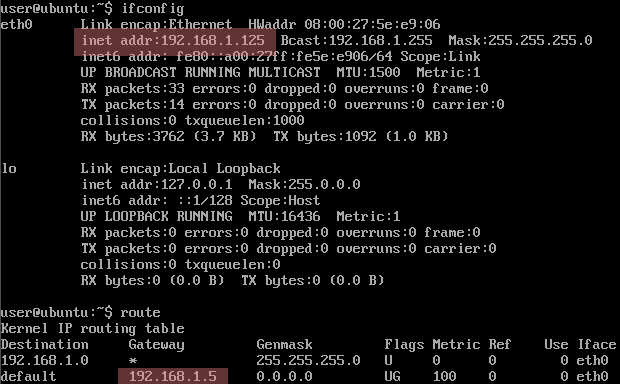
ifconfig and route

In this case, the new IP address is 192.168.1.125 and the gateway is 192.168.1.5. We can now apply these settings to /etc/network/interfaces. Open the said file via:

$ sudo vim /etc/network/interfaces

(For this tutorial, I’ll be using vim as the default text editor. If you find vim too daunting, you can replace all instances of vim with nano)

It will look something like:

# This file describes the network interfaces available on your system
# and how to activate them. For more information, see interfaces(5).

# The loopback network interface
auto lo
iface lo inet loopback

# The primary network interface
auto eth0
iface eth0 inet dhcp

Now replace the last line with the following:

iface eth0 inet static
address [address here]
netmask 255.255.255.0
gateway [gateway here]

for example:

iface eth0 inet static
address 192.168.1.125
netmask 255.255.255.0
gateway 192.168.1.5

To make sure you got the static IP settings correctly, you can restart the server via

$ sudo shutdown -r now

or you could just simply restart the network interface:

$ sudo /etc/init.d/networking restart

Here we see the /etc/init.d folder where the init scripts (like networking) are placed. Aside from being executed automatically upon boot to start services, they can also be used to stop or restart the said services just like what we just did with networking. We will see more of /etc/init.d/ later in this tutorial.

Now that we’ve set the IP address as static, it’s time to set a fake domain name.

Normally, when you’ve got a server with a static IP address, you’d have to go and buy a domain name from a registrar like Namecheap and you’d go through the steps in linking that name with the IP address and waiting for the DNS propagation.

For this tutorial, we’re going to skip all that by faking it with the hosts file.

First let’s update the server’s /etc/hosts file to add our fake domain name “mysite.dev”:

sudo vim /etc/hosts

Add the line at the end:

192.168.1.125   mysite.dev

You can verify the new setting by using the ping command.

user@ubuntu:~$ ping -c 4 mysite.dev
PING mysite.dev (192.168.1.125) 56(84) bytes of data.
64 bytes from mysite.dev (192.168.1.125): icmp_seq=1 ttl=64 time=0.172 ms
64 bytes from mysite.dev (192.168.1.125): icmp_seq=2 ttl=64 time=2.38 ms
64 bytes from mysite.dev (192.168.1.125): icmp_seq=3 ttl=64 time=3.34 ms
64 bytes from mysite.dev (192.168.1.125): icmp_seq=4 ttl=64 time=1.59 ms

--- mysite.dev ping statistics ---
4 packets transmitted, 4 received, 0% packet loss, time 3016ms
rtt min/avg/max/mdev = 0.172/1.874/3.342/1.161 ms
user@ubuntu:~$

Now let’s apply the fake domain name mapping to the host Windows computer. Like in Linux, the hosts file in Windows requires admin privileges so we first need to run the text editor as Administrator in order to allow us to modify it.
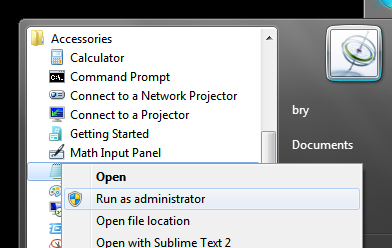
Run as administrator

Right-click Notepad and select “Run as administrator”. Once open, you can now add the “192.168.1.125 mysite.dev” to the end of the C:\Windows\System32\drivers\etc\hosts file.

Now you could change the PuTTy settings to use “mysite.dev” instead of the actual IP address.

The actual installation of the web server below the cut.

Continue reading “Learn how to setup a web server pt2: Installing Nginx and PHP”
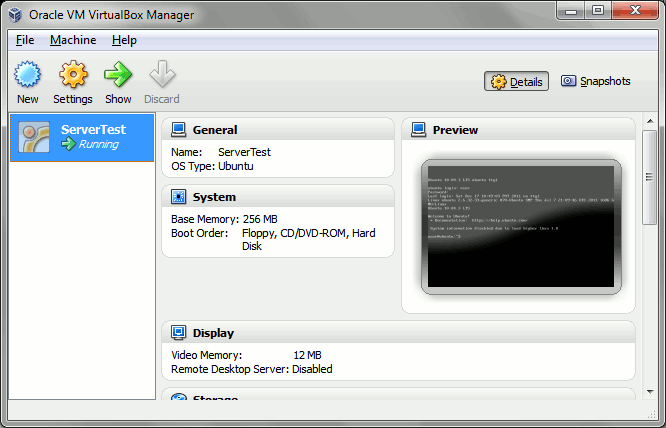
Learn how to setup a web server pt1: Setting up a practice server

VirtualBox

So you want to be a bit productive this holiday/winter/end-of-year break and decide to learn how to setup your own website.

But for some odd reason you don’t want to settle with a free website service like WordPress or even a cPanel managed shared hosting site. Instead, you want to know how to setup your own web server, something like a Linode VPS or an Amazon EC2 instance.

Luckily for you, I’m having a bit of a writer’s block and I have time to write about how to learn setting up a Linux server without having to pull out your credit card.

What this post is all about

In this post, we’ll just discuss how to set up a virtual server on your computer.

Yes, that’s right. We’re not installing a server OS on a spare machine, nor are we dual-booting: we’ll be setting up a server in your desktop, running the former inside the latter. This is virtualization, dawg.

We’ll be creating a server with somewhat similar specs to what you’d get if you sign up for $8 a month at prgmr.com. This simulated environment will be enough for a newbie to learn the ropes in server management.

What you need

Any relatively modern desktop or laptop computer will do. For this series of posts, I’ll be forgoing the use of my quad-core gaming rig and instead use my laptop (dual-core @ 2.1GHz with 3GB RAM). For the sake of the majority of the readers, I’ll be using Windows 7 as the OS though the steps will almost be the same when using Windows XP and Vista, and will still be similar even when using Linux or OSX.

You also need to be connected to a network, preferably one that gives out local IP addresses via a DHCP server. In other words, a home/office router. Fast internet also helps as you need to download >700MB worth of installer data.

As for the software, you will need to download VirtualBox and a CD image (.iso) for Ubuntu Server 10.04.3 Long Term Support 32-bit. The VirtualBox download and installation is pretty straightforward, but for the Ubuntu Server 10.04.3, you may want to choose downloading via BitTorrent for faster download speed.

Unlike Linux and OSX users who already have it built in on their terminals, Windows users will also have to download an SSH client like PuTTy, the one that you’ll see in this tutorial.

Continue reading “Learn how to setup a web server pt1: Setting up a practice server”

Rubber Ducking

One day after writing the previous post, I noticed two things:

  • I forgot to add the link for the term “rubber duck”, and
  • I never posted about “rubber ducking” before

I’ve fixed the first so it’s time to fix the second. Still finding it weird that I haven’t done it yet in the 2+ years this blog has been up, though…

Anyway, “rubber ducking” is a simple mind hack popularized by The Pragmatic Programmer. Instead of committing copyright infringement by copy-pasting what the book says about it (all 3 paragraphs), I’ll just go with Wiki Wiki’s take on the topic.

Place a rubber duck on your monitor and describe your problems to it. There’s something magical about stating your problems aloud that makes the solution more clear.

So yeah, my MO at hackathons is to either code something totally unexpected, or just float around “magically” solving problems by being a sounding board.

Code Retreat Baguio 2011

So after spending the entire day walking around doing stuff (and at one point get wrangled into MCing) for DevCon at DevOpsDays, me and a couple PhRUG guys got on a (red-eye?) bus to Baguio City for the non-official Philippine leg of the Global Day of Code Retreat.

This isn’t a full write-up of the event so I’ll keep this short and simple. The event was at Drei‘s place with just a bunch of Ruby, Python, and PHP guys from both Manila and Baguio hacking up random stuff instead of doing the whole Code Retreat thing.

after event

at the after event, aka “Yo dawg, I heard you like taking pictures so here’s a picture of people taking your picture so you can have a picture of you taking pictures of people taking pictures”

Being the slacker that I am, I didn’t have anything planned out beforehand. I thought I’d just go the same route as with Startup Weekend Manila and just be a rubber duck floating around groups. Fortunately, Buddy brought along his significant other Rizza with the intention of having her learn programming from the participants of the event.

I couldn’t resist this teaching challenge. So for the entire event, I went on to give an impromptu crash course on the fundamentals of software development.

I started off with basic imperative/procedural programming via pseudocode (to drill in the idea that software development is not about computers but about solving problems). As we progressed I moved on to Ruby for the more technical side of things (basic data types) up to Object Oriented basics.

first lesson

first programs – potato salad and quadratic formula

By mid-day, I had this little flash of insanity and began downloading >250MB of development stuff from a certain site.

That flash of insanity was to go back to the original Code Retreat exercise, Conway’s Game of Life, and build it in Java to teach software development: coding conventions, revision control, test automation, refactoring, etc.

Of course, I had to teach the most crucial concept in software development: how to wing it. And that was where Android came in.

So we had a base GoL class and a freshly installed Android SDK. A couple of Google searches later and a lot of guesswork, we were able to make the whole thing work as a Live Wallpaper in around 1.5 hours.

screenshot of wallpaper

Lack of sleep and preparation can turn a Ruby guy into a Java developer. LOL

Vocal Retraining

..or podcast, whatever you want to call it.

So I’m gonna be recording rants for the next few weeks to figure out and fix my vocal problems. I’m ok with topic suggestions but I’m not really expecting any.

Will be posting the recordings on this site until I get to setup another page for the recordings (probably a wiki).

Episode 0 – Intro

Episode 1 – Pizza (pt1 of 2)

Episode 2 – Pizza (pt2 of 2)

UPDATE

Podcasts now posted daily at http://bry-rants.tumblr.com/